Every workflow run, across every repo, in one view.
ctrl alt git gathers your GitHub Actions runs into one dashboard, so a failing build on your default branch stands out instead of hiding in a tab you never opened.
We're admitting accounts gradually. Sign in to join the waitlist.
Read-only GitHub access · Personal accounts and organizations
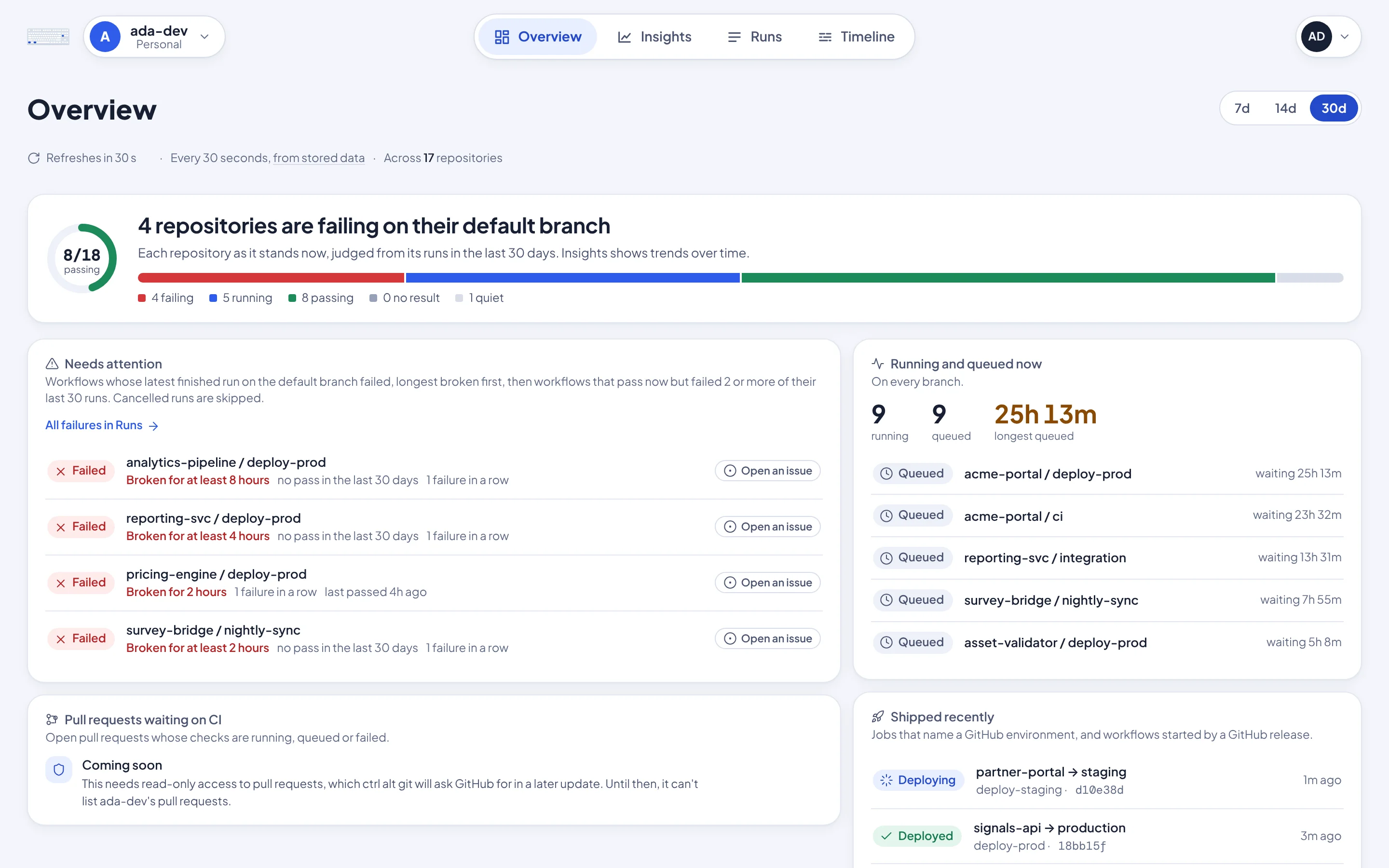
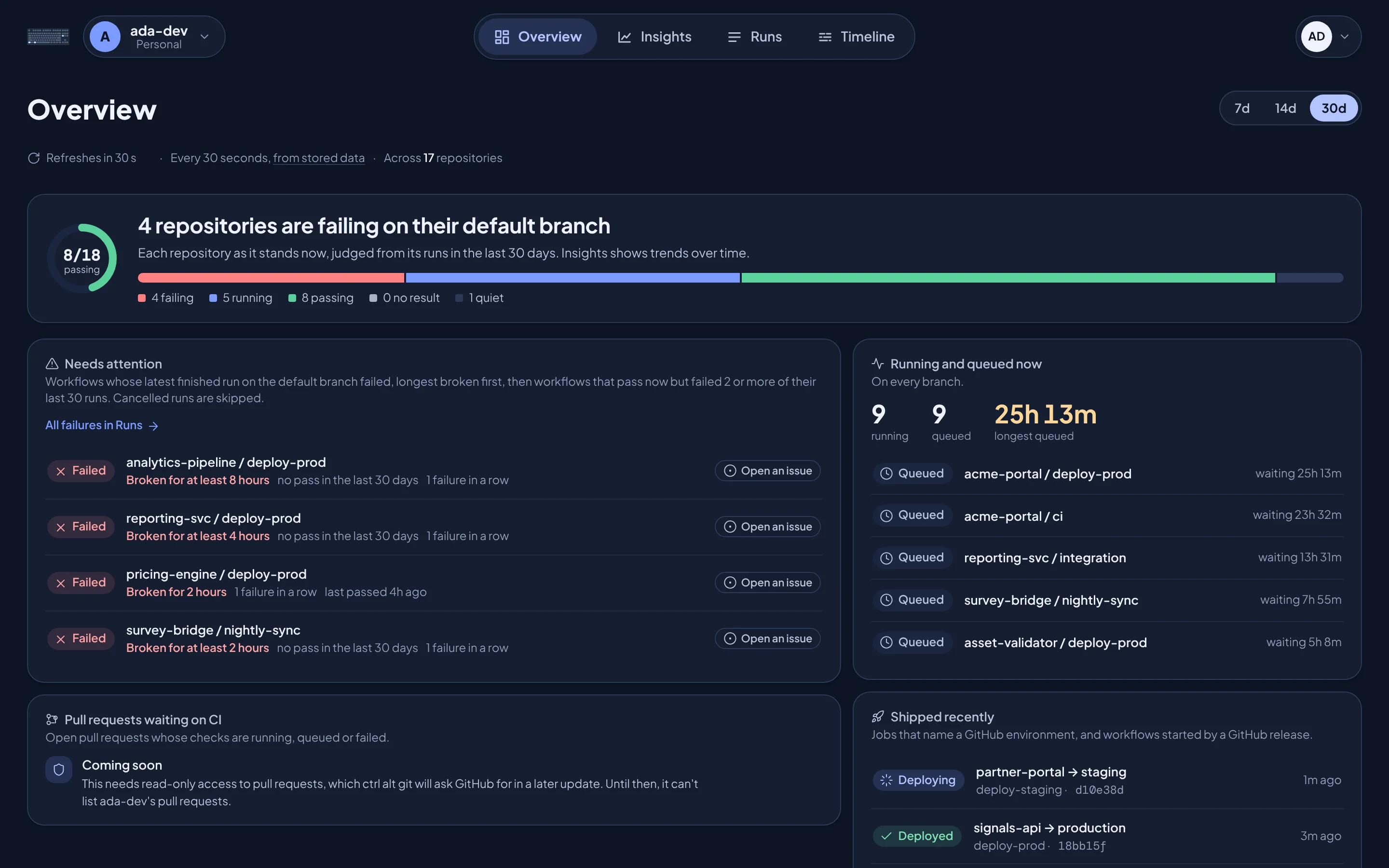
Know where things stand as soon as you sign in.
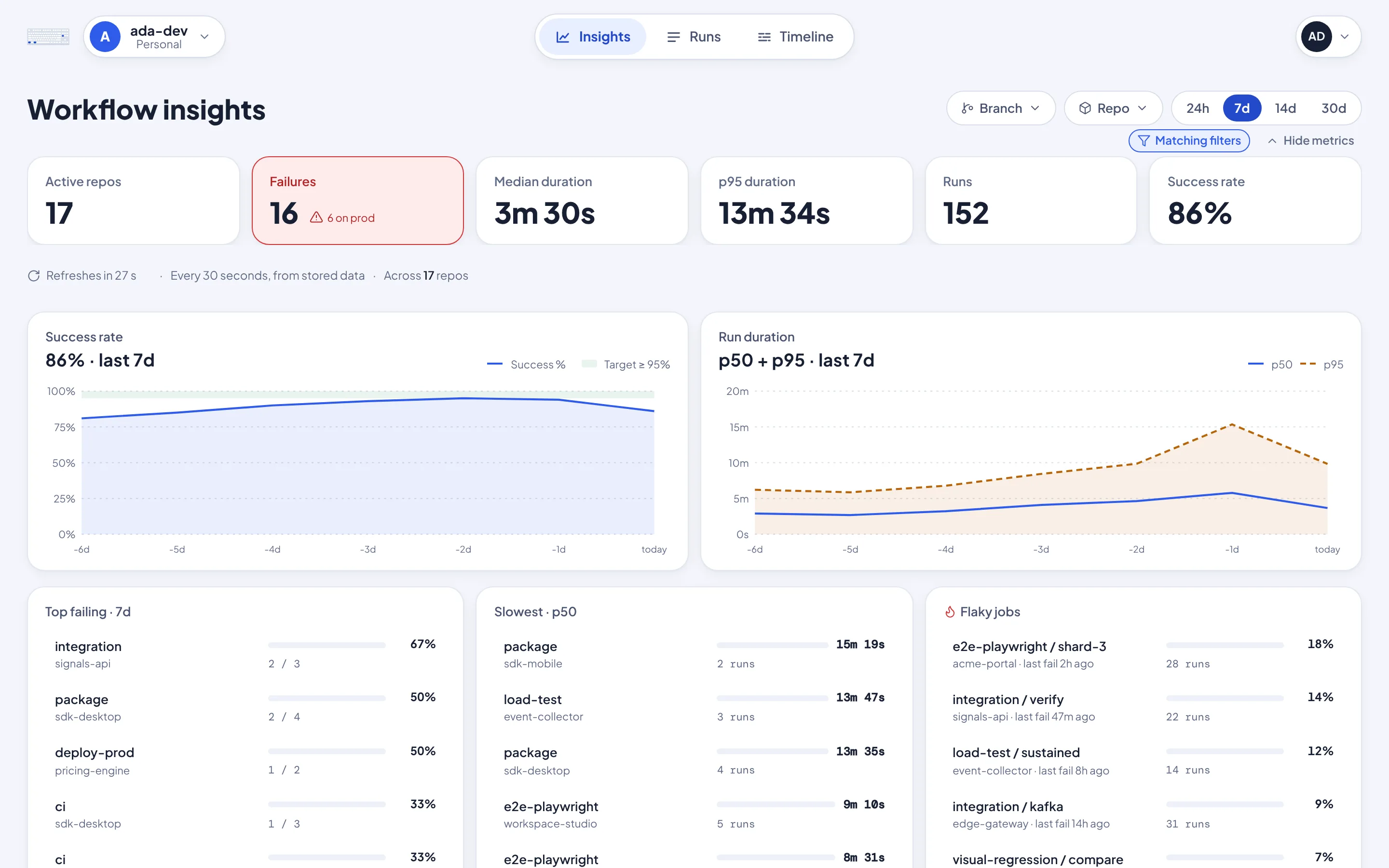
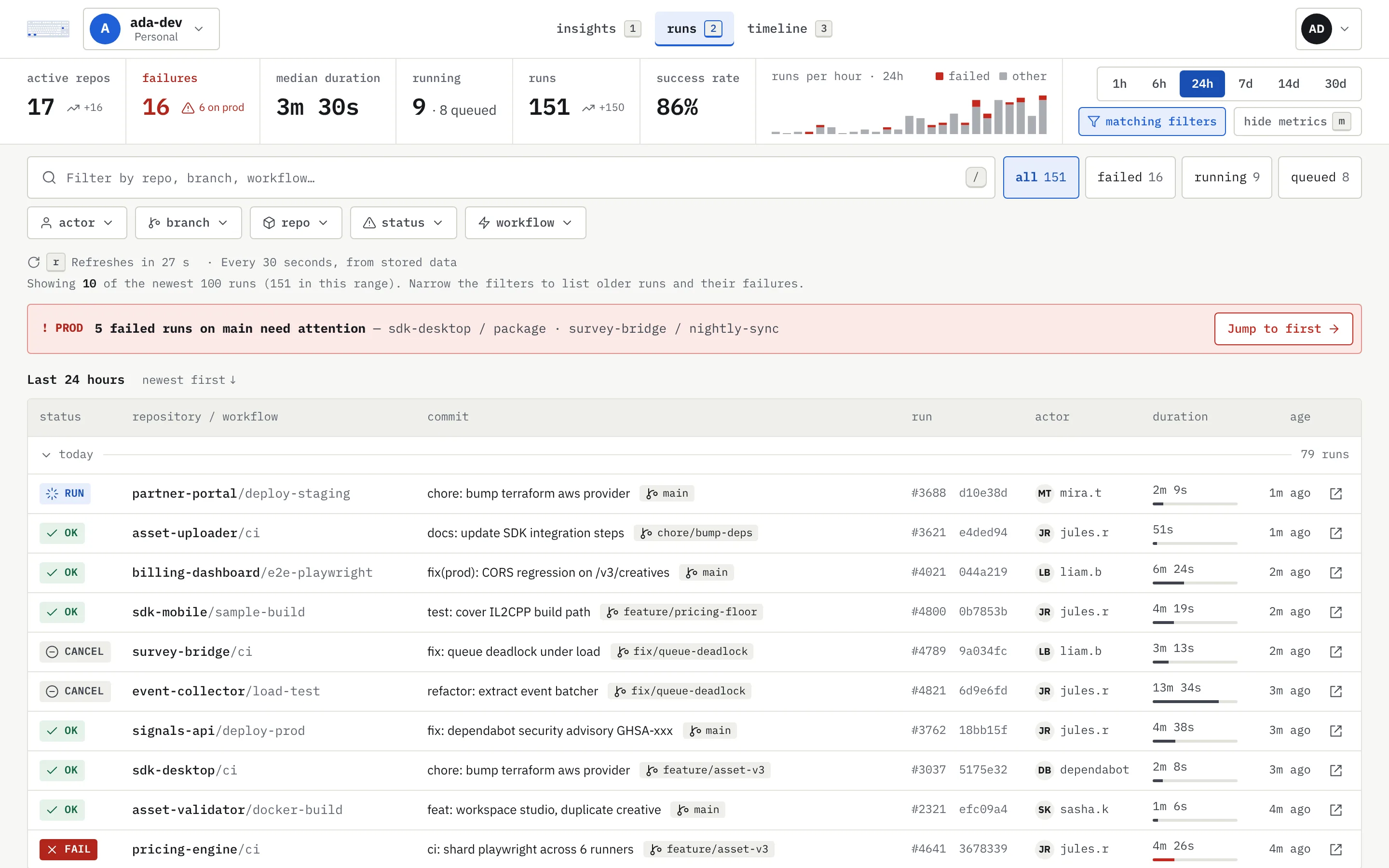
The first page you see shows which repositories are failing on their default branch and for how long, what is running or queued right now, what shipped recently, and which scheduled workflows missed a run.
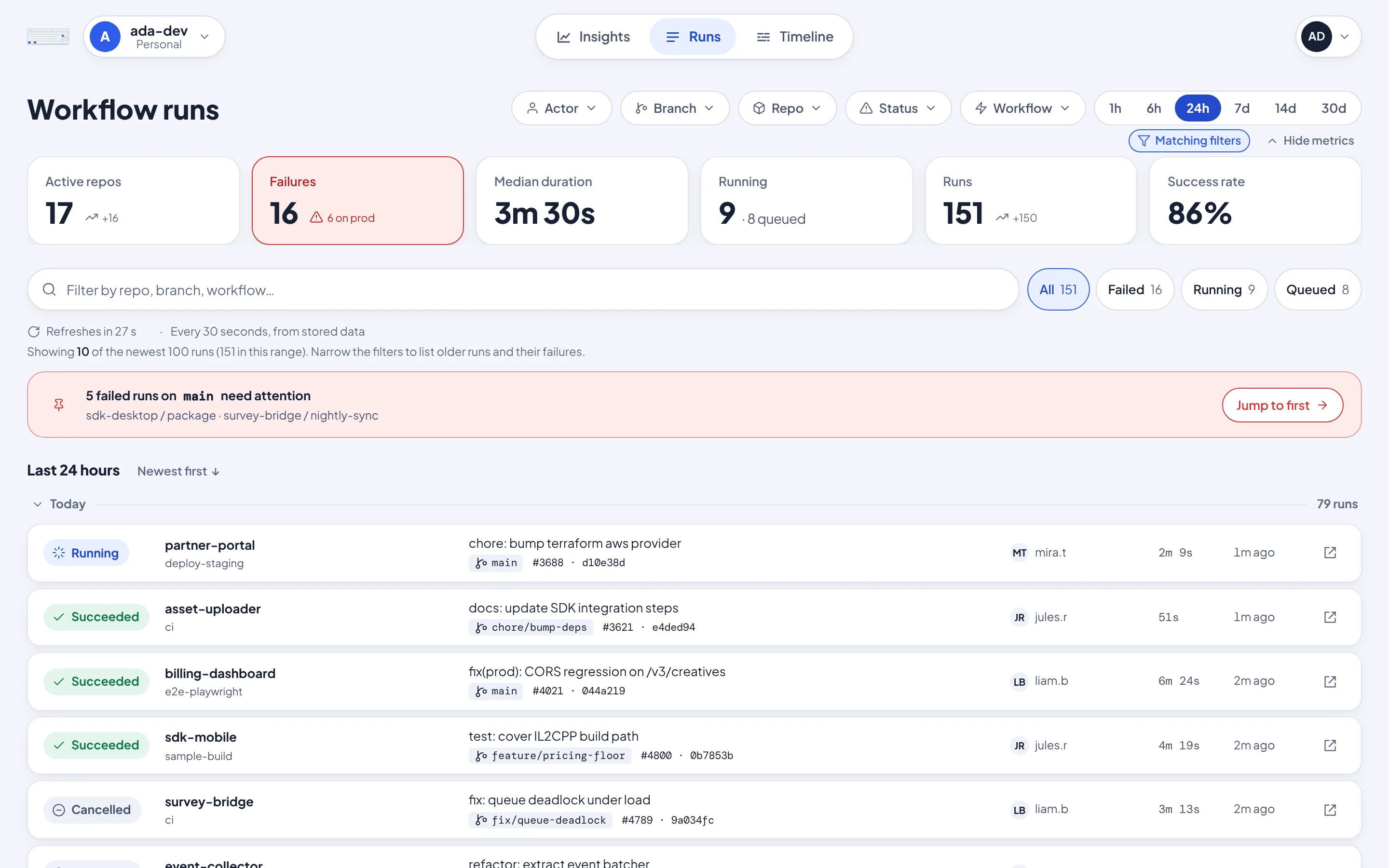
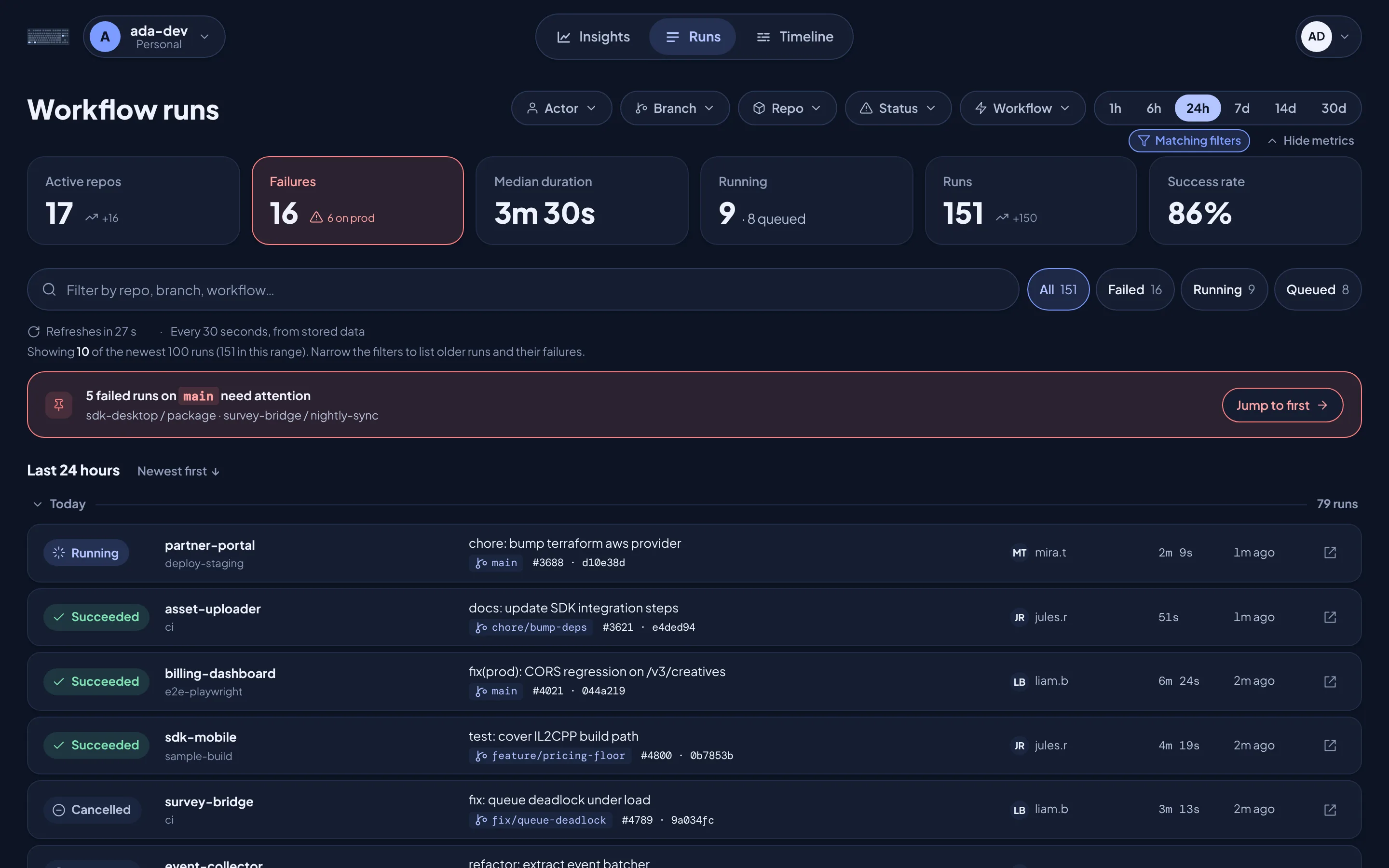
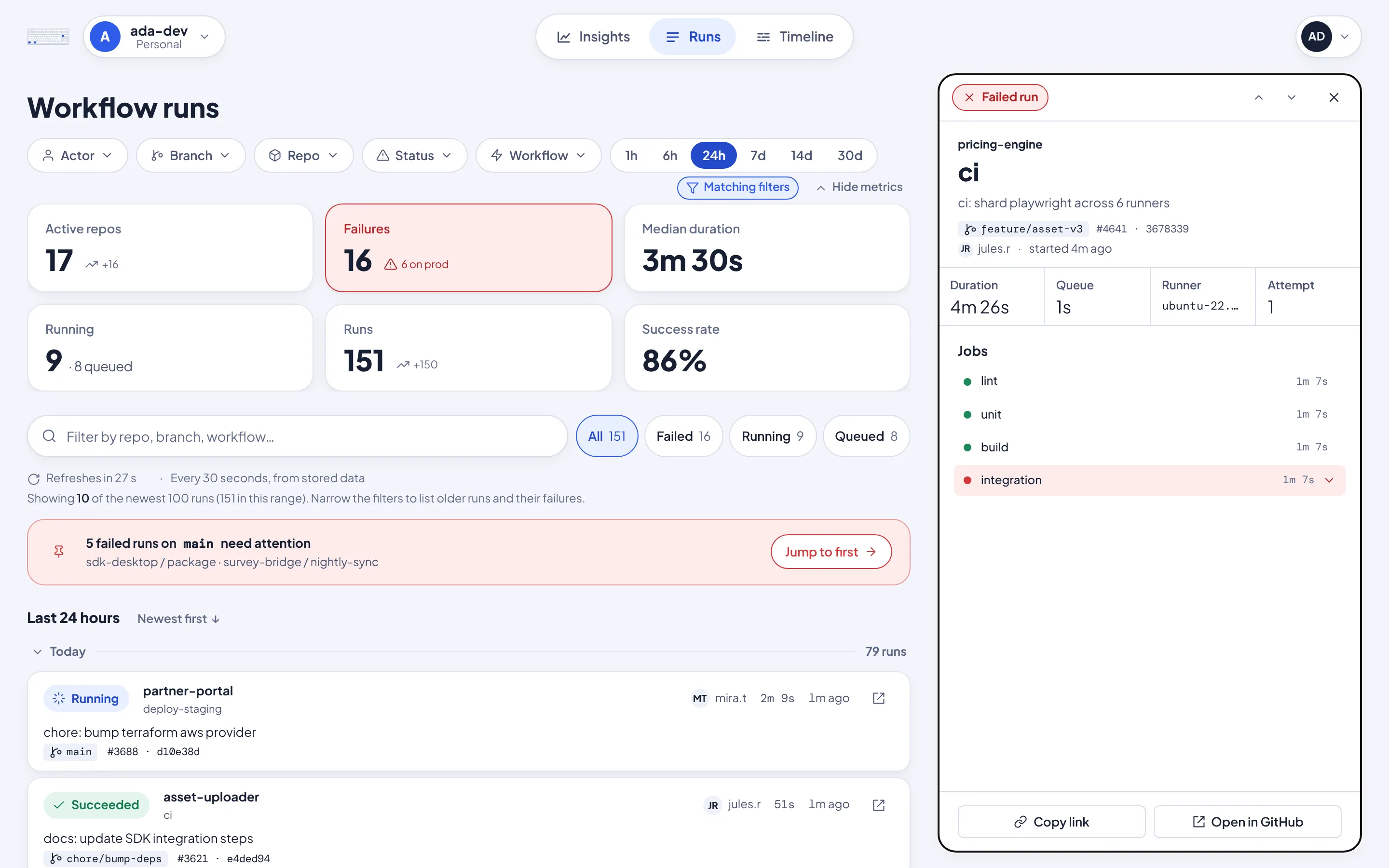
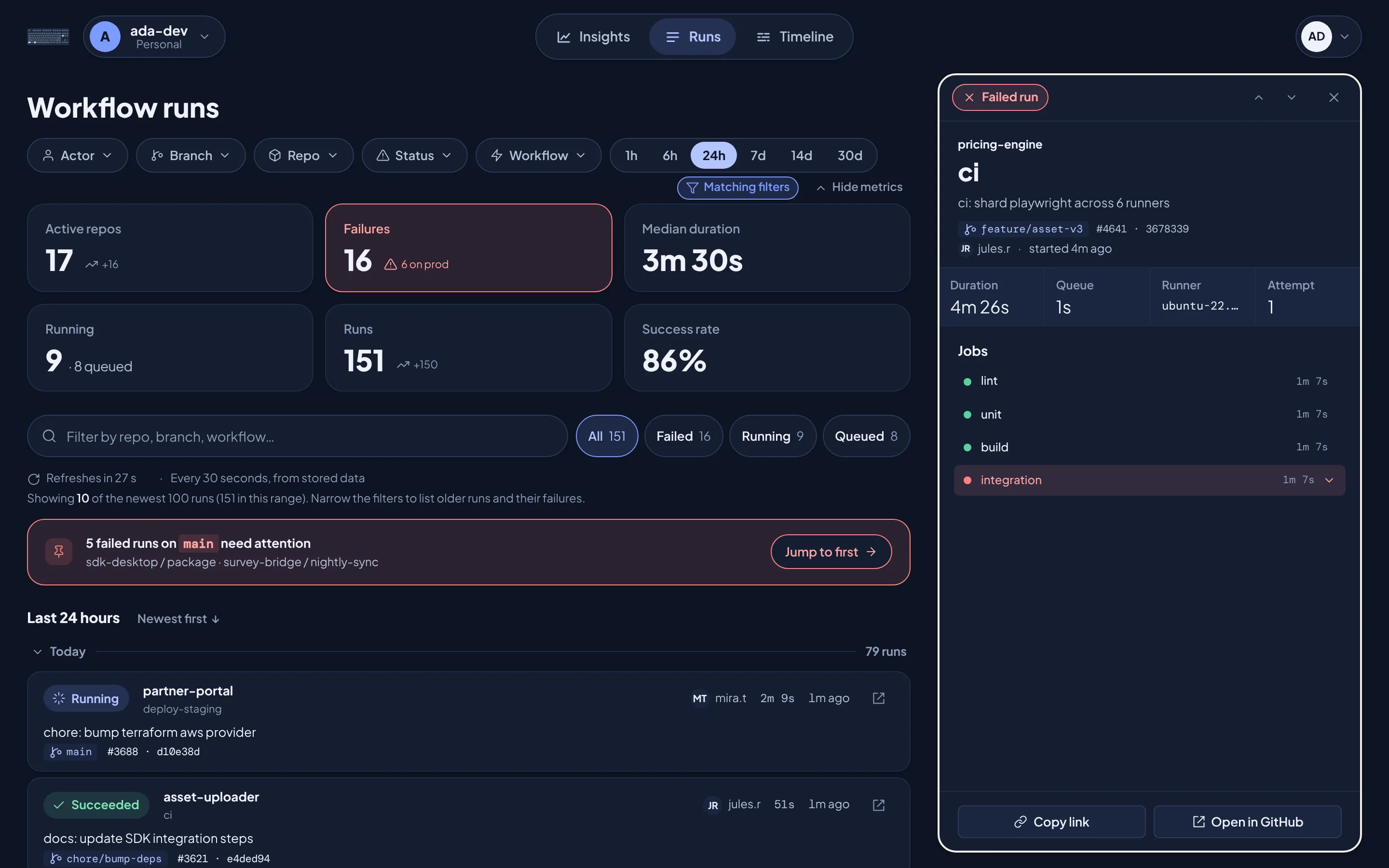
See what failed, first.
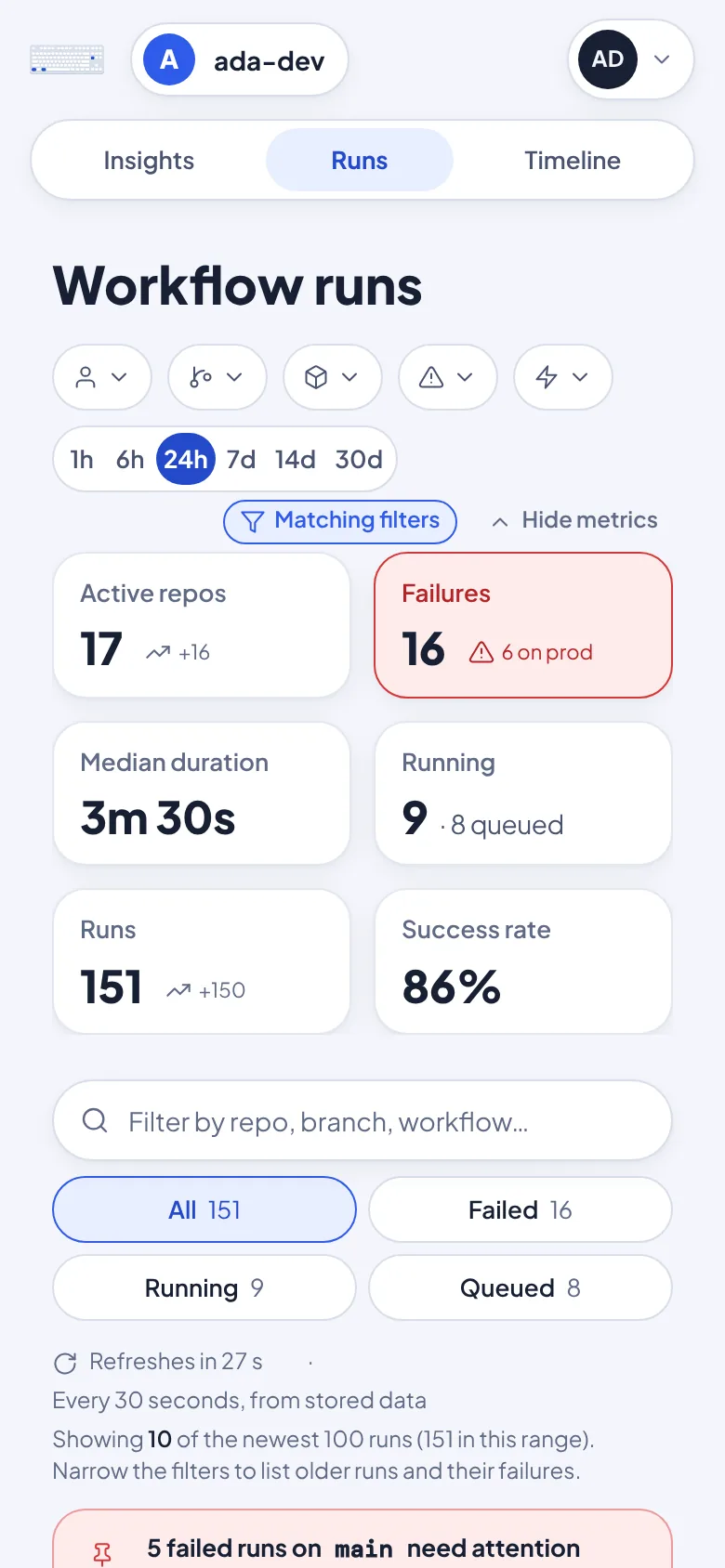
Failures get their own card, and failed runs on the default branch get a banner of their own. Open any run to see which job broke, then jump straight to it on GitHub.
Spot the pattern, not just the failure.
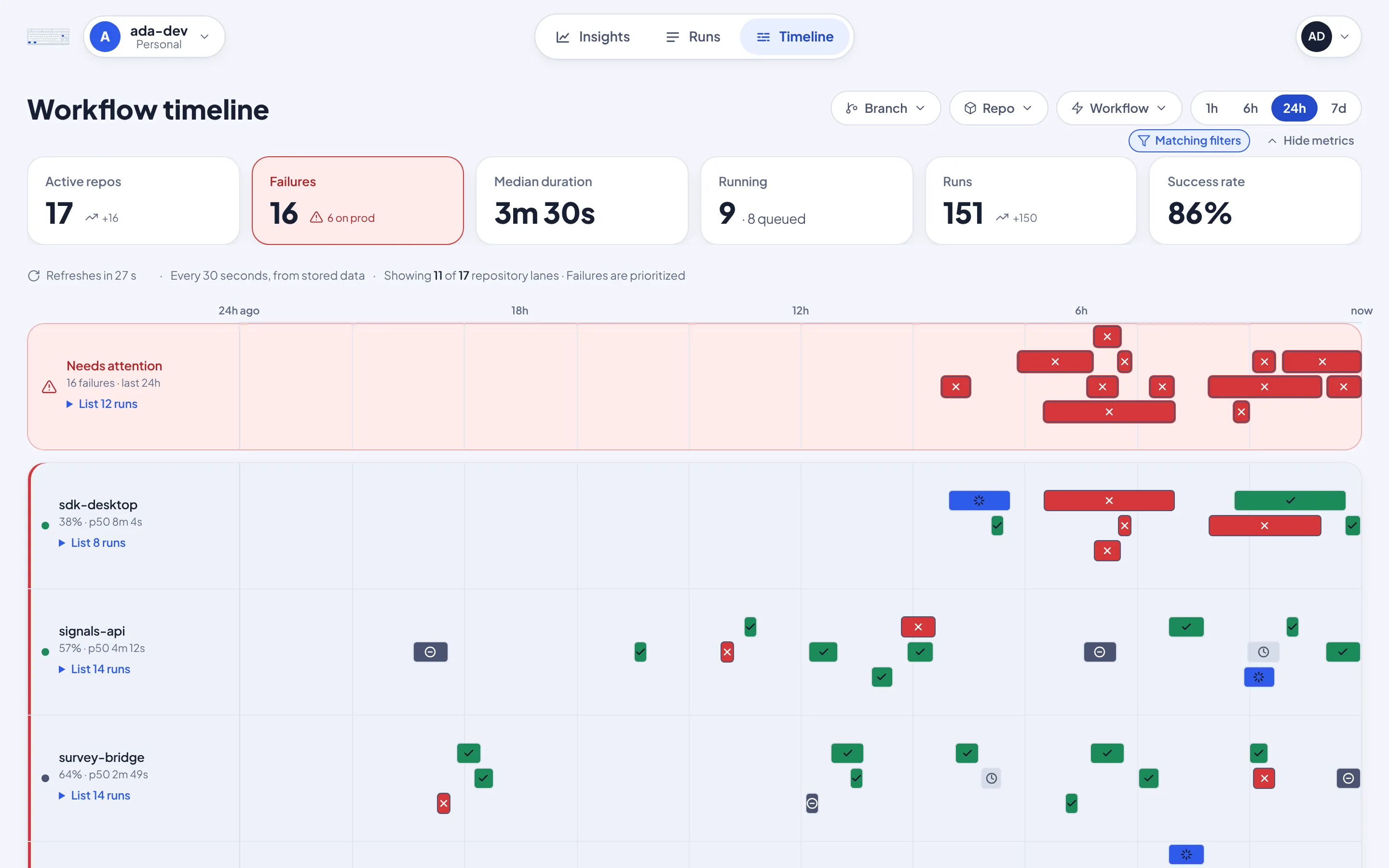
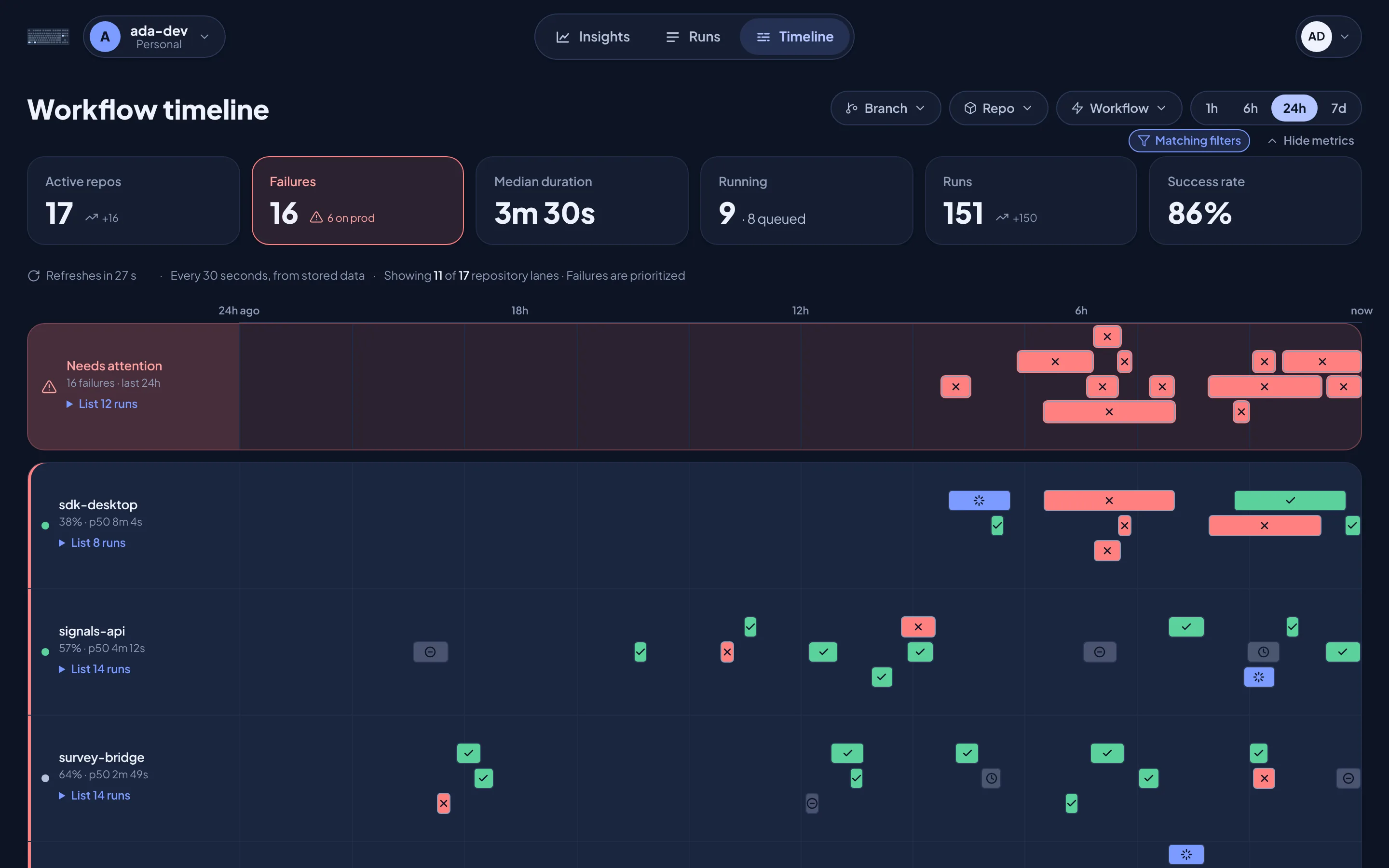
Your busiest repositories get a lane each across the last hour, day or week, with failures pulled to the top. A flaky afternoon or a broken deploy is obvious at a glance.
Know whether things are getting better.
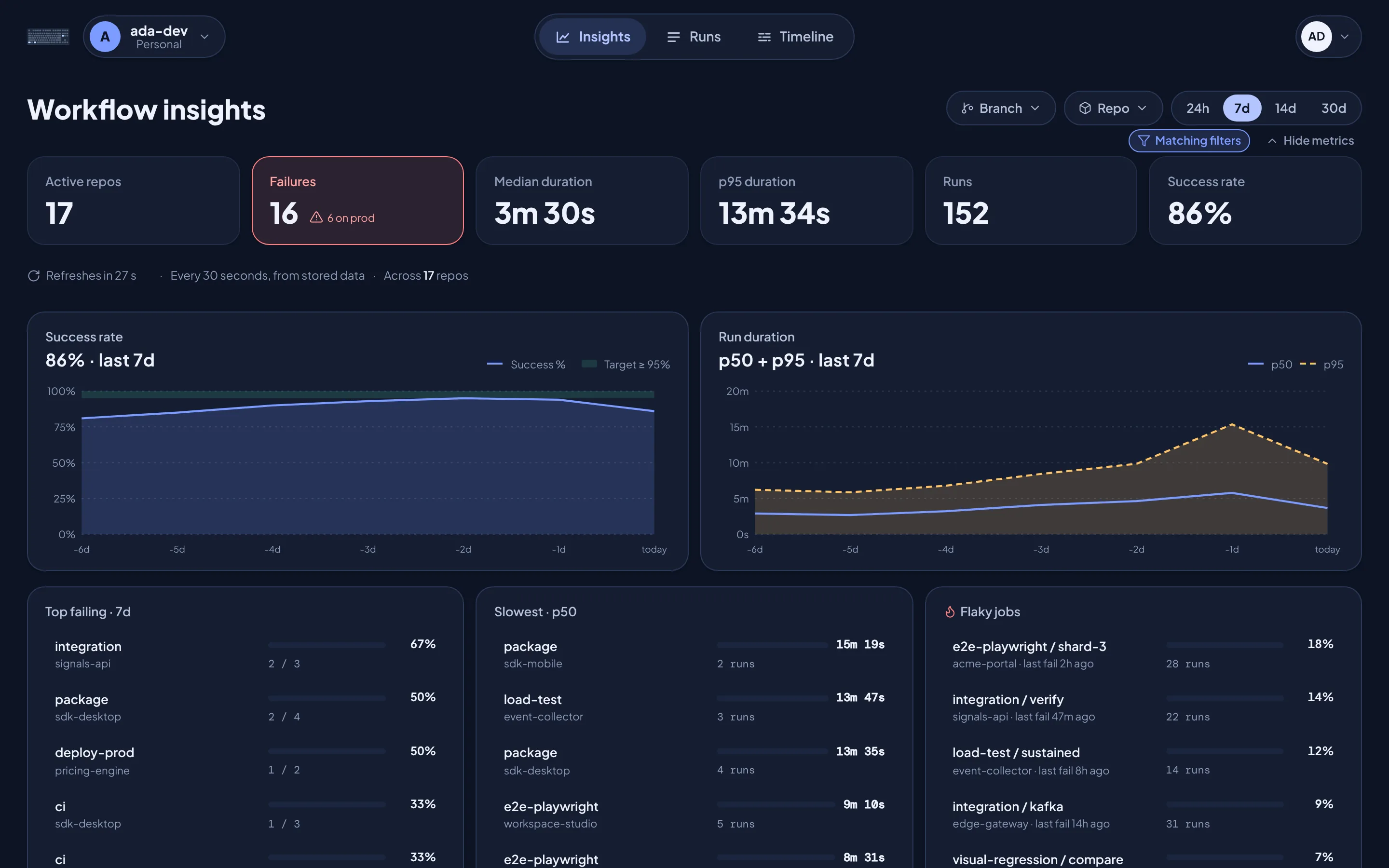
Success rate, p50 and p95 duration, the workflows that fail most, the slowest ones and the ones with intermittent failures, over up to 30 days, depending on your plan.
Filters that keep up
Narrow by actor, branch, repo, status or workflow, tap a status beside the filter bar, or type repo: to jump to one.
You and your org
On a paid plan, switch between your personal account and the organizations you work in. Free covers one account: your own or one organization.
Stays current
Pages refresh on their own while you watch a deploy go through.
Split view or overlay
Read a run beside the list, or over it. Your choice, in Settings.
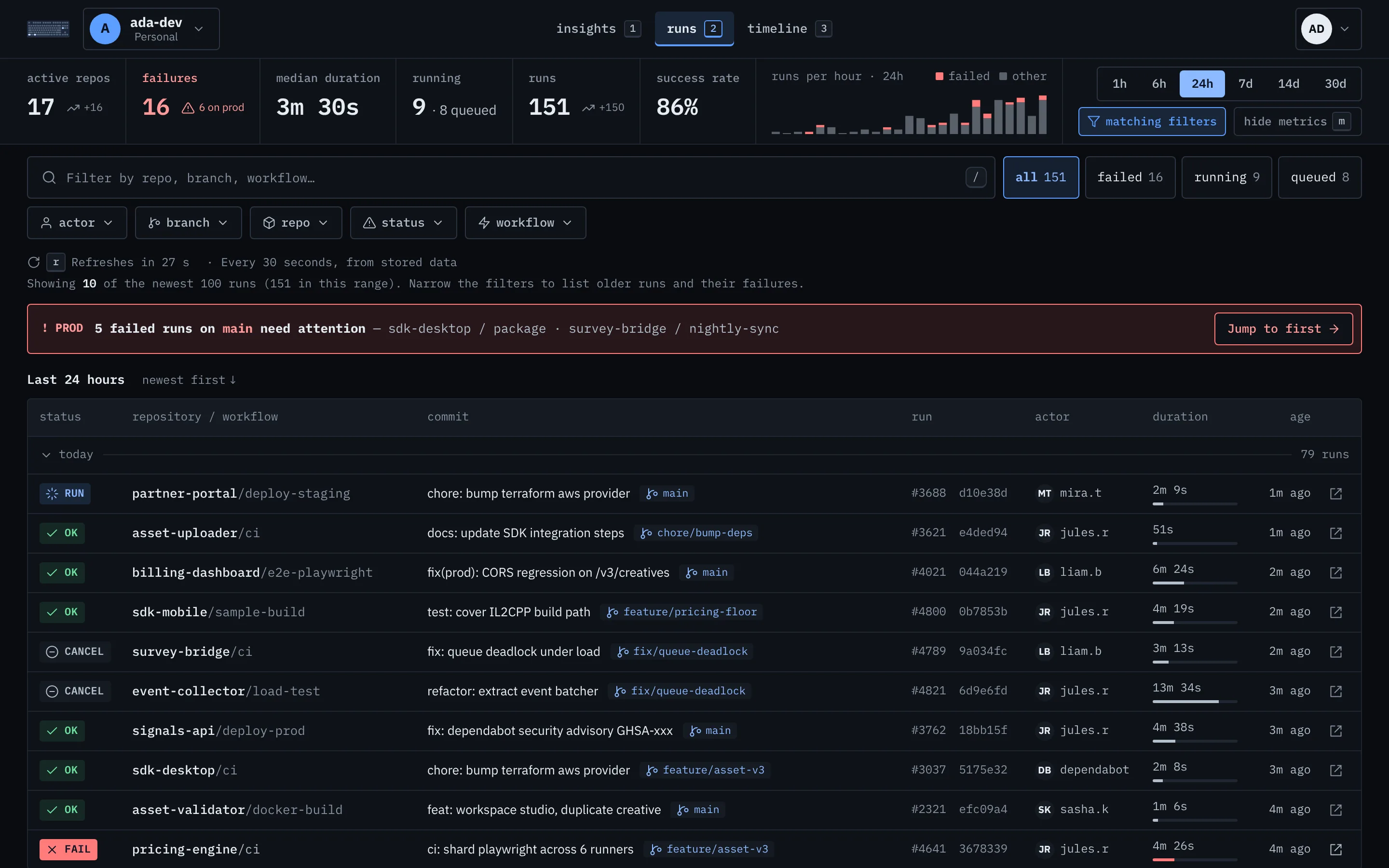
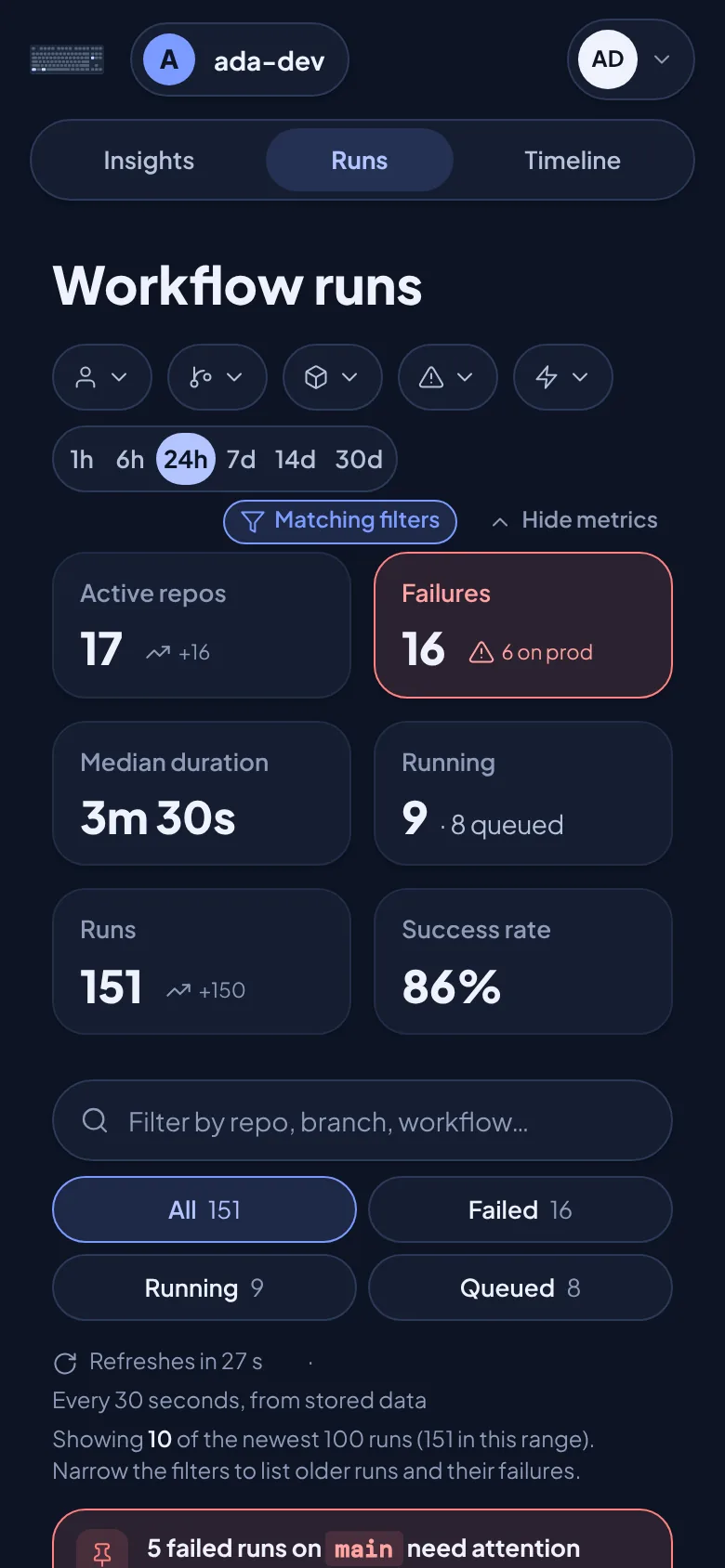
Two looks, each in light and dark.
Pick Friendly or Console when you start, change it any time in Settings, and let it follow your system's light or dark mode.
Check a deploy from your phone.
The same views, laid out for a small screen.
Built to read, never to write.
Read permissions only. The GitHub App asks for read access only: Actions, Metadata and, on organizations, Members. It can't push code or start a workflow.
Your access, nothing more. You see only the repositories your own GitHub sign-in lets you read.
Metadata, not code. It keeps workflow run and job details, never your source.


Bring your Actions into one view.
Sign in with GitHub, choose the account to install on, and pick the repositories it may read.
Get started